
Good Lock
Samsung Electronics Co., Ltd.Tools
3.8446.00 Reviews
- Version
- 3.0.16.6
- Installs
- 10.00M
- Age Rating
- Everyone
Screenshots
Our Review of Good Lock
 Analysis by Appyee
Good Lock is the kind of Android tool I appreciate more after living with a Galaxy phone for a while. It does not replace the phone’s main settings, and it is not a single-purpose utility that solves one small problem. Instead, it gathers a set of Samsung-made customization modules that let me adjust parts of the interface, navigation, lock screen, notifications, keyboard, and multitasking experience. That makes it especially interesting for people whose hands, eyes, routines, or attention do not fit comfortably with the default setup.
My overall impression is positive, but with an important qualification: this is a Galaxy-focused toolbox, not a universal Android customization app. It is free, made by Samsung Electronics Co., Ltd., rated for Everyone, and belongs in the tools category. The app has reached more than ten million installs and holds an average rating of 4.1 from roughly nine thousand ratings, which matches my feeling that it is useful but more specialized than a typical everyday download.
How Good Lock handles readability and navigation
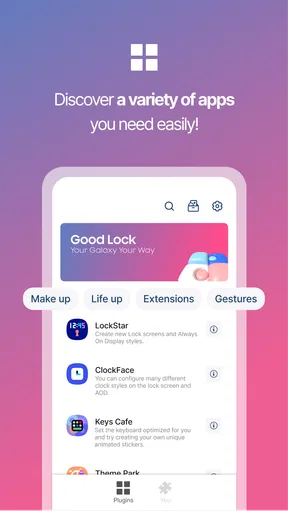
The first thing I noticed is that Good Lock does not present customization as one huge control panel. Its modules divide the experience into separate areas, so I can look for a lock-screen adjustment without digging through keyboard settings or notification options. That separation is helpful for readability because each module has a narrower purpose. It also reduces the risk of changing unrelated parts of the phone by accident.
At the same time, the modular approach creates a learning curve. A newcomer may open the app expecting a finished theme editor and instead find a collection of tools that need to be understood individually. I found it easier to begin with one problem rather than browse everything at once: navigation feels awkward, the lock screen needs more information, or the recent-apps view is not working well for my routine. That approach keeps the interface manageable.
The most useful benefit for visual comfort is control over information density. Depending on the module and the Galaxy software available on the phone, I can make certain areas feel less crowded or arrange controls around the way I actually read them. This matters when the default layout puts small icons too close together, hides useful actions behind extra taps, or makes a frequently used control difficult to reach.
I would not describe Good Lock as a replacement for Android’s built-in accessibility settings. System options such as font size, display size, screen magnification, spoken feedback, and contrast-related adjustments remain the more appropriate starting point for people who need broad visual or auditory assistance. Good Lock works best beside those settings, adding finer control over Samsung’s interface rather than trying to provide a complete accessibility layer.
One practical habit helped me avoid confusion: I changed one module at a time and used the phone normally before making another adjustment. Because several modules can affect how the interface looks or behaves, changing many settings together makes it difficult to identify which choice improved or harmed readability. For someone helping a family member configure a phone, this gradual method is much easier to explain and reverse.
Useful customization without turning the screen into a puzzle
Customization can improve clarity, but more options do not automatically mean better access. I found that the best results came from removing friction rather than decorating the phone. A simpler arrangement of shortcuts, a more predictable navigation setup, or a lock screen that exposes the information I check most often can save repeated effort throughout the day.
There is a trade-off here. A highly personalized interface may be comfortable for its owner but confusing for another person who needs to provide support. If a relative, technician, or caregiver regularly helps with the phone, I would keep the changes understandable and make a note of the important ones. Good Lock gives me freedom, but that freedom can make troubleshooting less obvious.
The app is also more useful for people who want Samsung’s interface to respect a specific routine. For example, I may prefer quick access to certain controls when commuting, or I may need the lock screen to show information in a way that is easier to scan before unlocking. These are small changes individually, yet they can reduce the number of repeated gestures over a full day.
Motor and sensory considerations in everyday use
Good Lock’s strongest inclusive quality is its ability to reduce unnecessary movement. If a control is difficult to reach with one hand, if a gesture requires too much precision, or if I repeatedly open the same panel, a suitable module may let me reorganize the interaction around my hand position. That is valuable for people with limited reach, temporary strain, or simply a preference for using the phone one-handed.
I would still be careful not to assume that every customization improves motor access. Some alternatives replace a familiar action with a new gesture or add more choices to an already busy screen. A person with tremors or reduced fine-motor control may benefit from fewer accidental touch targets, while another user may find a gesture-based shortcut harder to perform consistently. The right setup depends on whether the change reduces precision demands in practice.
My recommendation is to test changes while standing, walking, and using the phone with the hand you normally use. A layout that feels excellent while sitting at a desk may be awkward when the phone is held lower, when the other hand is occupied, or when attention is divided. This is one reason I see Good Lock as a personal fitting tool rather than a preset accessibility solution.
For sensory needs, the app can help shape how much visual information appears and where it appears, but it does not remove the need to configure the phone’s core sound, vibration, display, and accessibility controls. Someone who is sensitive to visual clutter may want a calmer arrangement, while someone who misses alerts may need stronger system-level notification settings first. Good Lock can support those goals only where its modules affect the relevant Samsung interface.
There is also a useful distinction between changing appearance and changing feedback. A different icon arrangement may make navigation easier to understand, but it does not necessarily make touch feedback clearer. Likewise, a more informative lock screen may reduce the need to unlock the device, yet it could expose more information at a glance. I would review both convenience and privacy before settling on a layout.
A realistic routine for reducing repeated effort
Imagine checking a Galaxy phone throughout a busy workday while carrying a bag and using only one hand. The owner may need to glance at notifications, reach a familiar quick setting, and switch between two recent apps several times. With Good Lock, I would start by identifying the actions that cause the most stretching, extra swipes, or missed taps. I would then adjust only the relevant interface area, use the phone for a day, and remove anything that adds uncertainty.
This workflow is more effective than trying to make the entire phone look different. The goal is not maximum customization. It is to move the few actions that matter most into a comfortable, repeatable pattern. For someone with temporary hand pain, that might mean reducing one-handed reach. For someone with attention difficulties, it might mean making the most important controls easier to locate and leaving less-used options out of the way.
Good Lock can also be useful when a person’s abilities change by context. A user may have no difficulty with small controls at home but struggle outdoors, in bright light, while wearing gloves, or when one hand is occupied. I would judge every adjustment by those real situations rather than by how impressive it looks in a setup screen.
Situational access: where the app earns its place
The app makes the most sense for Galaxy owners who want the phone to adapt to different parts of their day. A commuter may value a lock screen that is easier to scan quickly. A frequent multitasker may want a different way to manage recent apps. Someone who uses the phone in landscape mode may appreciate interface behavior that feels less tied to portrait use. These are not universal benefits, but they are meaningful when they match a repeated situation.
It is also helpful for people who share physical spaces with others. A quieter visual setup can make it easier to focus in a crowded environment, while better organization can reduce the need to repeatedly search through menus. I would not claim that Good Lock solves sensory overload, but thoughtful interface changes can remove some avoidable noise from the phone experience.
Another strong use case is gradual adaptation after changing phones. Galaxy users often know what they want from a familiar interface, yet a new device or software layout can move controls and alter habits. Good Lock gives me a way to bring parts of the experience closer to what feels natural. That can be particularly helpful for older users or anyone who finds sudden interface changes tiring.
However, situational access has limits. If I need the same customization across phones from different manufacturers, Good Lock is the wrong choice because its value is tied to Samsung’s Galaxy environment. A general launcher, system accessibility settings, or a manufacturer-neutral tool may be more practical for a mixed-device household. The app is strongest when the phone itself is already part of Samsung’s ecosystem.
Compatibility is another point I would check before planning a setup. The current version is 3.0.16.6, and the app requires Android 12 or later. That makes the operating-system requirement important for older phones. Even on a compatible Galaxy device, the exact modules and available controls can depend on the phone’s software and model. I would install it on the intended device rather than assume that another Galaxy phone will expose the same options.
Remaining barriers and the compromises I noticed
The biggest barrier is complexity. Good Lock offers many ways to adjust the phone, but a person who needs a simple, predictable setup may find the number of choices tiring. The app does not feel like a guided accessibility wizard. It expects me to understand what part of the interface I want to change and to learn the behavior of the relevant module.
That complexity can affect support as well. If one person configures the phone for another, the recipient may later struggle when a system update, a changed habit, or an accidental reset alters the experience. I would keep a short record of important settings and avoid relying on obscure changes for essential functions. Built-in Android options are usually easier for general support staff and family members to recognize.
There is also a risk of over-customizing. Moving controls, changing gestures, and adjusting panels can create a setup that feels perfect until another app, a different orientation, or a new task exposes an inconsistency. I found it better to prioritize reliability over novelty. If a change saves one tap but makes the next action harder to predict, it is not an improvement for my use.
Privacy deserves attention when the lock screen becomes more informative. Showing more details before unlocking can be convenient, especially for quick checks, but it may not suit people who use their phone in public or share a workspace. Good Lock can help shape the presentation, but I would decide first how much information should be visible at all.
People with significant accessibility needs should also avoid treating this app as the only solution. Good Lock may refine Samsung’s interface, but it does not replace screen readers, magnification, hearing support, switch access, or other dedicated system features. If a person depends on one of those tools, I would configure and test the built-in Android option first, then use Good Lock only where it clearly improves the surrounding interaction.
The app is free, which makes experimentation easier, but free does not mean effortless. The real cost is time spent learning, testing, and sometimes undoing a change. That is acceptable for enthusiasts and patient users. It may be a poor fit for someone who wants to install one app and immediately receive a stable, universally easier interface.
Who should use it and who should skip it
I recommend Good Lock to Galaxy owners who enjoy tailoring their phone and can identify specific points of friction. It is particularly worthwhile for people who want to reduce repeated gestures, make certain information easier to reach, or adapt Samsung’s interface to one-handed and context-dependent use. It can also be a good project for a family member helping someone build a more comfortable phone routine.
I would skip it if I use a non-Samsung Android phone, need a cross-platform solution, or want a single launcher with minimal setup. I would also be cautious if I find settings menus overwhelming. In that case, Android’s standard accessibility controls and Samsung’s ordinary system settings are a better starting point, with Good Lock added only when there is a clearly defined need.
Compared with a typical third-party launcher, Good Lock feels more integrated with Samsung’s own interface. That can make its adjustments more natural on a Galaxy phone, but it also means less freedom outside Samsung’s design boundaries. Compared with built-in accessibility tools, it offers more detailed interface personalization but less direct focus on broad access needs. I see it as the middle layer between basic system settings and full visual customization.
The age rating is Everyone, so there is no reason to view it as a specialist app limited to technical users. Still, an Everyone rating does not indicate that every module will be equally easy for every person. A child, older adult, or user with cognitive or motor challenges may need someone to help choose and test settings rather than being handed the whole toolbox at once.
My inclusive verdict on Samsung’s customization toolbox
After using Good Lock as a way to reshape everyday Galaxy interactions, I think its value comes from solving small, repeated annoyances. It can make navigation more personal, reduce unnecessary reaching, and help a phone fit different visual or situational preferences. The best results come from targeted changes: identify one barrier, adjust the matching area, test it in real conditions, and keep only what makes the next action clearer.
Its limitations are just as important. The modular design can be confusing, the benefits depend on the Galaxy device and Android version, and customization is not the same as comprehensive accessibility. People who need dependable assistive features should begin with the operating system’s dedicated tools. People who want a simple setup may be happier without adding another layer of choices.
For me, the app is worth recommending when a Galaxy phone feels almost right but not quite comfortable. It gives capable users room to correct that mismatch without replacing the whole interface. Samsung’s current release, version 3.0.16.6, supports phones running Android 12 or later, and the fact that it is free makes trying one carefully chosen adjustment low-risk. Good Lock is best understood as a personal fitting kit for a Galaxy phone, not a universal answer to accessibility.
If I were recommending it to a friend, I would say: install it when you can name the interaction you want to improve, start with one module, and judge the result during your actual routine. If the phone becomes easier to read, reach, or understand without making support more difficult, keep the change. If it creates more decisions than it removes, return to the simpler built-in settings. That practical boundary is what makes Good Lock genuinely useful rather than merely entertaining to customize.
Privacy and Permissions
See what permissions an app requests and how it handles your data.
- Other
- view network connections, full network access, run at startup, prevent device from sleeping, install shortcuts
Verdict
Strengths of Good Lock
- Deeply customize Samsung’s interface without rooting the phone.
- Modular design lets you install only the tools and features you need.
- Useful lock screen, notification, and multitasking customization options.
- Regular updates add support for newer Galaxy devices and One UI versions.
- Many modules improve everyday controls, shortcuts, and productivity.
Limitations of Good Lock
- Most features are limited to Samsung Galaxy phones and One UI.
- Some modules may be unavailable depending on your country or device model.
- The large number of modules can make setup feel confusing for beginners.
- Updates may temporarily cause bugs or compatibility issues after One UI releases.
- Certain customization options can increase battery use or system complexity.
Other Releases by Samsung Electronics Co., Ltd.
View All
Samsung Calendar
Productivity4.1

Samsung Browser
Communication3.6

Samsung Music
Music & Audio3.8

SmartThings
Lifestyle4.6
Similar Picks in This Category
View All
Google LLC4.0

Gboard - the Google Keyboard
Google LLC4.5

Google Play services
Google LLC4.3

Google Play Store
Google LLC4.9

Files by Google
Google LLC4.5

SHAREit: Transfer, Share Files
Smart Media4U Technology Pte.Ltd.4.3
Frequently Asked Questions
What is Good Lock, and what can I do with it?
Good Lock is Samsung’s customization suite for Galaxy phones and tablets. It is not a single theme or launcher, but a collection of optional modules that let you adjust the lock screen, notification panel, quick settings, multitasking, navigation gestures, home screen, keyboard, and other system features. The available options depend on your Galaxy model, Android version, and One UI release.
Is Good Lock compatible with every Android phone?
No. Good Lock is primarily designed for Samsung Galaxy devices running a supported version of One UI, so it generally cannot be used properly on phones from Google, Xiaomi, Motorola, or other manufacturers. Even among Galaxy devices, certain modules may be unavailable because of regional restrictions, hardware limitations, or differences between One UI versions. Check the Galaxy Store before downloading to confirm compatibility.
Does Good Lock cost money, and does it contain advertisements?
Good Lock and its official modules are normally available free of charge through Samsung’s Galaxy Store. The app itself is not typically based on subscriptions or paid upgrades, although some customization options may require compatible Samsung services or features. Availability and presentation can vary by region. As with any system customization tool, it is wise to download only the official Samsung version rather than unofficial modified packages.
Can Good Lock affect my phone’s performance or battery life?
Most Good Lock modules are lightweight and should not noticeably reduce performance on a recent Galaxy device. However, modules that add animated effects, advanced routines, extensive widgets, or continuous customization controls may use additional system resources. If your phone becomes slower, warmer, or drains battery faster after installation, disable modules individually to identify the cause. Keeping One UI and Good Lock updated can also improve stability.
Is Good Lock safe to install, and can I undo its changes?
Good Lock is safe when installed from Samsung’s official Galaxy Store because it is developed for Galaxy devices and integrates with One UI. Before changing important settings, remember that some modules can significantly alter navigation, notifications, or the lock screen. Nearly all adjustments can be reversed from within the relevant module, and uninstalling a module usually removes its customizations. Still, record your preferred settings before major updates or resets.
